Troubleshooting•
8 min read
•
Updated 2026-10-21

Common IPTV Player Errors & How to Fix Them: 401, 403, 404 & Playback Failed

Flexe IPTV Technical Team
Streaming Infrastructure & Client Support
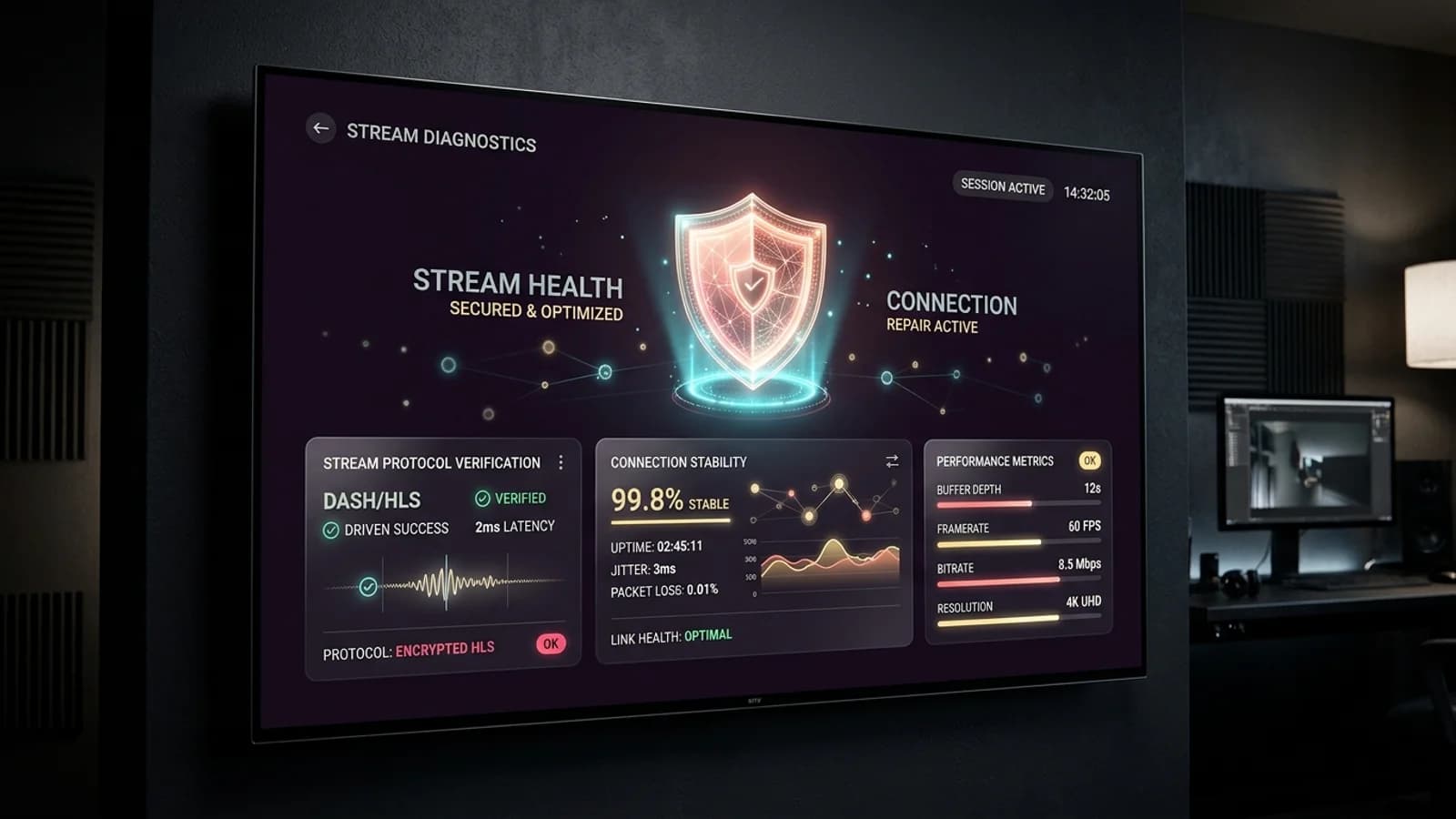
Technical diagnostic dashboard on smart television screen showing stream verification and error resolution status

When an IPTV stream fails to open, modern player applications display technical error messages such as 'HTTP Error 401', 'HTTP Error 403 Forbidden', 'Playback Failed', or 'Cannot Open Stream'. While these error notices may look cryptic at first glance, they are standard web protocol status codes with predictable, straightforward solutions.

This diagnostic guide provides a complete reference for decoding common player error messages, explaining exactly what they mean and providing step-by-step instructions to get your channels streaming smoothly again.

1. Diagnosing HTTP Response Codes: 401, 403, 404, 500

HTTP status codes indicate whether an HTTP request from your player to our streaming server was successfully completed or rejected.

Whenever your media player requests a stream, the streaming server sends back a three-digit status code. A status code of 200 OK means the stream is available and downloading normally. Any code in the 400 or 500 range indicates a specific client-side or server-side barrier.

Status CodeError NamePrimary Root CauseImmediate Fix Action
HTTP 401UnauthorizedTypo in username/password, expired lineRe-verify credentials or renew pass
HTTP 403ForbiddenExceeded screen limit, MAC mismatch, ISP blockClose second screen or contact support
HTTP 404Not FoundStream URL changed or channel under maintenanceUpdate playlist or choose backup stream
HTTP 500 / 503Server ErrorServer node rebooting or satellite relay swapWait 2 minutes or switch server mirror

2. How to Resolve 401 Unauthorized & 403 Forbidden Errors

Authentication and permission errors represent over 70% of reported stream failures.

An HTTP 401 Unauthorized error indicates that the streaming server rejected your authentication token. Carefully check your username and password in player settings. Mobile keyboard auto-correct frequently capitalizes the first letter of usernames or inserts a hidden trailing space at the end of passwords when copying from an email.

If your credentials are typed accurately, an Error 401 means your subscription term has elapsed. Check your account status or order a fresh subscription pass.

An HTTP 403 Forbidden error means the server recognizes your account but is actively refusing access. The most common cause is exceeding your simultaneous connection limit. If you have a 1-Screen plan and stream on a TV while someone opens the app on a mobile phone, the server instantly triggers a 403 block. Close all other player instances to resume playback.

ISP Domain Blocking Causing 403 Errors

Some telecommunication operators intercept streaming port requests and return a false 403 Forbidden. Changing your router DNS to Cloudflare (1.1.1.1) immediately bypasses this block as explained in our buffering guide.

3. Fixing 'Playback Failed' & Decoder Crashes

Resolving stream player errors caused by codec incompatibility between video containers and device hardware.

When an app reports 'Playback Failed', 'Decoder Initialization Error', or 'Can't Play This Stream', the issue is rarely network-related. Instead, your media player's internal video engine failed to unpack the video container format (MPEG-TS or HLS).

In TiviMate, go to Settings > Playback and change the Video Decoder from 'Hardware' to 'Software' (or vice-versa). On Android devices, switching from ExoPlayer to the integrated VLC or IjkPlayer engine resolves codec crashes instantly.

Furthermore, inspect your stream output format. In your playlist account settings, change the output format from '.ts' (MPEG Transport Stream) to '.m3u8' (HLS). HLS streaming uses smaller, standardized video chunks that older hardware can process without buffer overflow.
4. Correcting Audio Lag, Desync & Silent Channels

Fixing audio commentary that lags behind the live picture or channels that display video with zero sound.

If you encounter a channel where the video plays smoothly but there is total silence, the stream is likely broadcasting an AAC-ELD, Dolby AC3, or EAC3 surround sound track that your television speakers cannot decode natively.

Press the OK or Info button on your remote to open the on-screen display, select the Audio Track icon, and switch from 'Track 1 (Surround)' to 'Track 2 (Stereo PCM)'. In your player's audio settings, enable 'Software Audio Decoding' to force the player to downmix multichannel audio to stereo.

For audio lip-sync lag during live sports, use your player's Audio Delay feature. In TiviMate and Smarters Pro, you can adjust audio timing forward or backward by +/- 50ms increments (typically -200ms to -300ms resolves Bluetooth soundbar latency).

5. Preventative Maintenance Routine for Reliable Streaming

Follow this five-minute weekly routine to prevent common streaming errors before major broadcasts.

  • Weekly Application Cache Flush: Clear the cache of your IPTV player under your device's application manager to maintain free working memory.
  • Check Free Storage Space: Ensure your streaming stick has at least 500MB of free internal storage for temp video files and guide databases.
  • Keep Player Apps Updated: Always update your player software to the latest release to maintain compatibility with new streaming codecs.
  • Maintain a Backup Player: Install a secondary verified player app (e.g., both TiviMate and IPTV Smarters Pro) on your device. If an app update introduces a bug, you can switch players in seconds.
  • Reach Out to Official Support: If a specific channel consistently fails to open across multiple players, notify our official WhatsApp support desk for automated channel relay reboots.
Next Steps & Resources

Ready to Experience High-Performance IPTV?

Put these tips into practice with Flexe IPTV's 4K streaming network. Test our 18,000+ channel catalog with a 24-hour test line or select a flexible multi-screen subscription plan.

Keep Learning

Related Streaming Guides

View all guides