Troubleshooting•
7 min read
•
Updated 2026-10-21

How to Stop IPTV Buffering: Practical Network & Player Optimization Guide

Flexe IPTV Technical Team
Streaming Infrastructure & Client Support
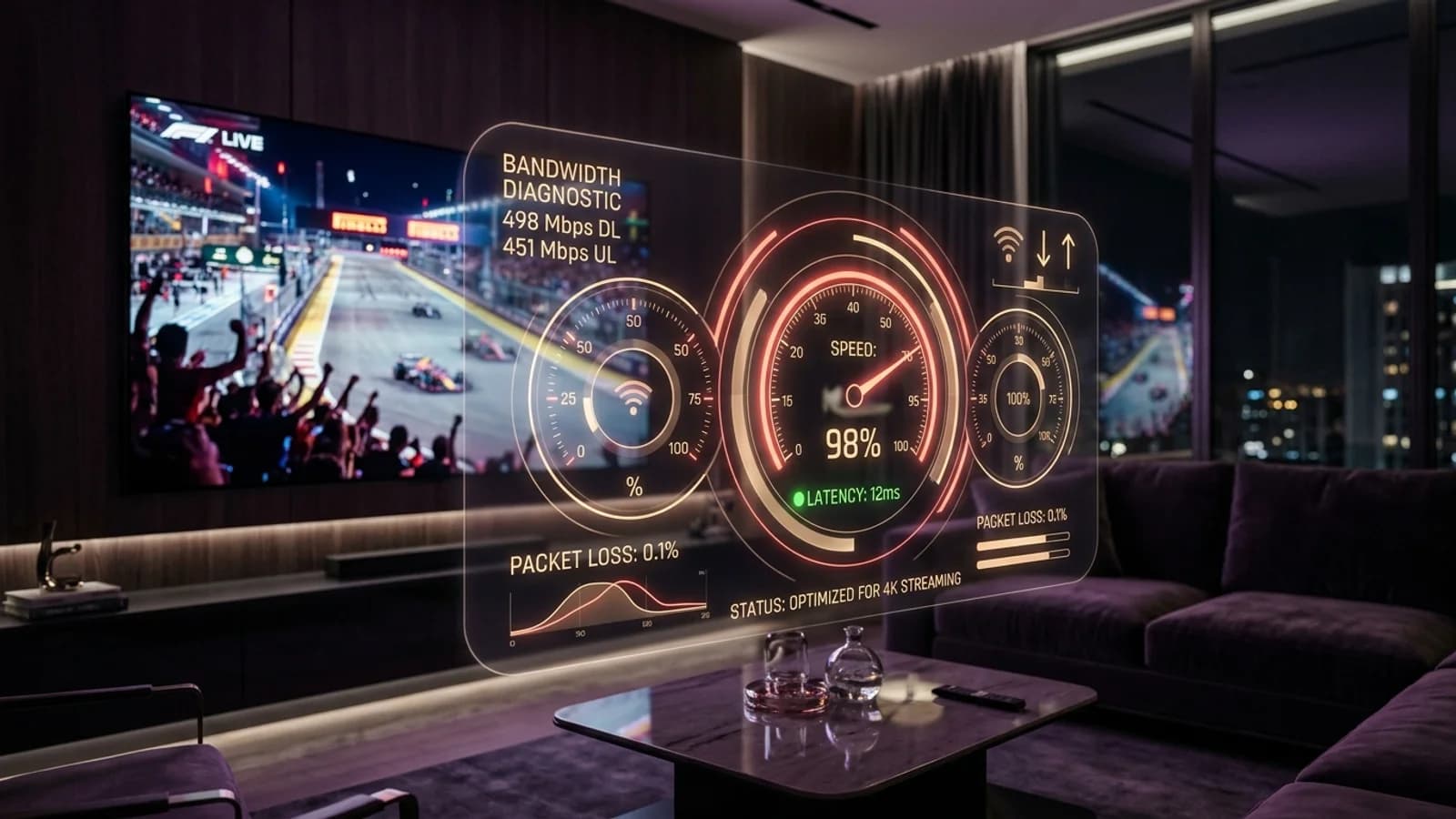
Wi-Fi 6 router streaming uninterrupted 4K sports video to a wall-mounted television over low-latency connection

Nothing ruins a championship football match or high-stakes movie climax faster than a spinning buffering wheel. While many viewers immediately assume the streaming provider's server is down, in over 85% of cases, stream interruption is caused by local network bottlenecks, Wi-Fi interference, ISP traffic shaping, or player buffer misconfigurations.

This technical guide explains how to systematically isolate and resolve IPTV buffering issues so you can enjoy consistent, crystal-clear 4K and 60FPS playback on your Flexe IPTV subscription.

1. Identifying the Root Cause of Buffering

Diagnosing whether buffering stems from your home network, your streaming device, or the stream itself is the essential first step.

Not all buffering looks the same. A stream that halts every 10 seconds for a quick half-second buffer indicates that data is arriving slightly slower than the playback bitrate—typically a Wi-Fi bandwidth or packet jitter issue. Conversely, a stream that plays smoothly for 20 minutes and then freezes completely until you change channels usually indicates a connection timeout or ISP socket reset.

To isolate the cause, perform a rapid cross-device test: open the same stream on your smartphone connected to cellular mobile data. If the channel plays flawlessly on 5G mobile data but buffers on your home Wi-Fi, the issue lies in your local home network or ISP routing rather than our streaming server infrastructure.

Server-Side vs. Client-Side Symptoms

If an entire bouquet of channels fails to open simultaneously with an error code like 401 or 403, check our common IPTV error troubleshooting guide to verify your account credentials and concurrent connection limits.

2. Network Optimization: Wi-Fi Bands & Ethernet

Live streaming delivers continuous MPEG-TS packets that require low jitter and zero packet loss, unlike buffered YouTube or Netflix video.

On-demand video platforms like Netflix buffer several minutes of video ahead of playback, disguising momentary Wi-Fi dropouts. Live television feeds, however, cannot buffer ahead because the event is occurring in real time. If your streaming stick drops packets for 300 milliseconds, playback pauses.

The 2.4GHz Wi-Fi band is notoriously susceptible to interference from microwave ovens, baby monitors, and neighboring networks. Always connect your streaming device to your router's 5GHz Wi-Fi band, which offers significantly wider 80MHz channel bandwidth and vastly reduced latency.

For the most reliable viewing experience, use a direct wired Ethernet connection. If you use an Amazon Firestick or Chromecast, invest in a dedicated USB Ethernet adapter ($12-$15) to eliminate wireless packet loss entirely.

Connection MethodAverage LatencyPacket JitterBuffering Risk
Wired Ethernet (Cat6)1 - 3 ms< 1 msNear Zero
5GHz Wi-Fi (80MHz Channel)4 - 8 ms1 - 3 msVery Low
2.4GHz Wi-Fi (Crowded)25 - 65 ms10 - 35 msHigh
Powerline HomePlug8 - 18 ms3 - 7 msModerate

3. Bypassing ISP Throttling & DNS Bottlenecks

Internet Service Providers frequently throttle high-bandwidth streaming protocols during peak evening hours and major sporting events.

If your speed test reports 200 Mbps during the afternoon, but your IPTV stream buffers repeatedly at 8:00 PM on a Saturday, your ISP is likely applying automated packet shaping to video streaming ports. Some telecommunication providers also employ DNS-level filtering that delays stream lookups.

The fastest fix for DNS lag is replacing your router's default ISP DNS addresses with trusted high-speed public resolvers. We recommend Cloudflare DNS (1.1.1.1 and 1.0.0.1) or Google Public DNS (8.8.8.8 and 8.8.4.4). Changing DNS takes two minutes in your router's DHCP settings or directly on your streaming device under Network Settings.

How to Change DNS on Firestick / Android TV

Navigate to Settings > Network > your Wi-Fi name > Forget Network > Reconnect. Under Advanced Settings, set IP Settings to 'Static', keep your IP address and Gateway, and enter DNS 1: 1.1.1.1 and DNS 2: 1.0.0.1.

4. Fine-Tuning Media Player Buffer Sizes

Customizing your media player's internal memory buffer creates a shock absorber against momentary packet drops.

Advanced player applications like TiviMate, OTT Navigator, and IPTV Smarters Pro allow users to specify buffer duration. If your buffer is set to 'None', any minor delay in packet delivery causes an immediate pause. Increasing the buffer duration gives your connection time to recover dropped packets without interrupting on-screen action.

In TiviMate, go to Settings > Playback > Buffer Size and select 'Normal' or 'Large'. On IPTV Smarters Pro, navigate to Settings > Player Settings and set the buffer to 2500ms or 5000ms. Keep in mind that a larger buffer adds 2 to 4 seconds of initial zap time when switching channels, but provides uninterrupted playback during live games.

Additionally, check your stream output format. In your playlist settings, toggle between 'MPEG-TS' and 'HLS'. HLS (HTTP Live Streaming) transmits video in chunked segments and is often more resilient over connections with minor instability.

5. Device Cache Management & Memory Maintenance

Compact streaming devices like the Firestick Lite or standard Smart TVs have limited RAM and storage that accumulate junk data over time.

When low-memory streaming devices run out of available RAM, the operating system aggressively terminates background processes, causing media decoders to stutter or crash. Clearing cached data once a week maintains peak performance.

On Fire TV, navigate to Settings > Applications > Manage Installed Applications, select your IPTV player and other streaming apps, and click 'Clear Cache'. Do NOT click 'Clear Data' unless you want to re-enter your login credentials.

Finally, perform a full cold reboot of your TV and router once a month: unplug both devices from wall power for 60 seconds. This clears the router's NAT routing tables and discharges static memory on your streaming hardware.

Next Steps & Resources

Ready to Experience High-Performance IPTV?

Put these tips into practice with Flexe IPTV's 4K streaming network. Test our 18,000+ channel catalog with a 24-hour test line or select a flexible multi-screen subscription plan.

Keep Learning

Related Streaming Guides

View all guides